When the call comes in
When a call comes in: log the callout, call the crew from it, capture the signed authorization on scene, and carry it into the pipeline.
-
Chapter 1 of 3 · Office
Log a callout
Log a callout with the address and who called, and see it on the board with its timeline and scene ticket.
1:21 · English audio · captions on screen
Read the chapter 1 transcript
Captions are burned into the video and are always on.
Dispatch lives in Field Operations. Press the Dispatch tile to open the board.
Callouts sit here by state. Under Closed, a finished one keeps its response time and how many accepted.
Press New callout. Under Where, the street and the town — where the truck goes.
Who called it in: pick the source — here, the property owner — then the caller's name and number.
What happened: pick what you were told — storm, water — and the building type. The rest can wait.
Press Log callout. It's logged — and nobody has been notified yet.
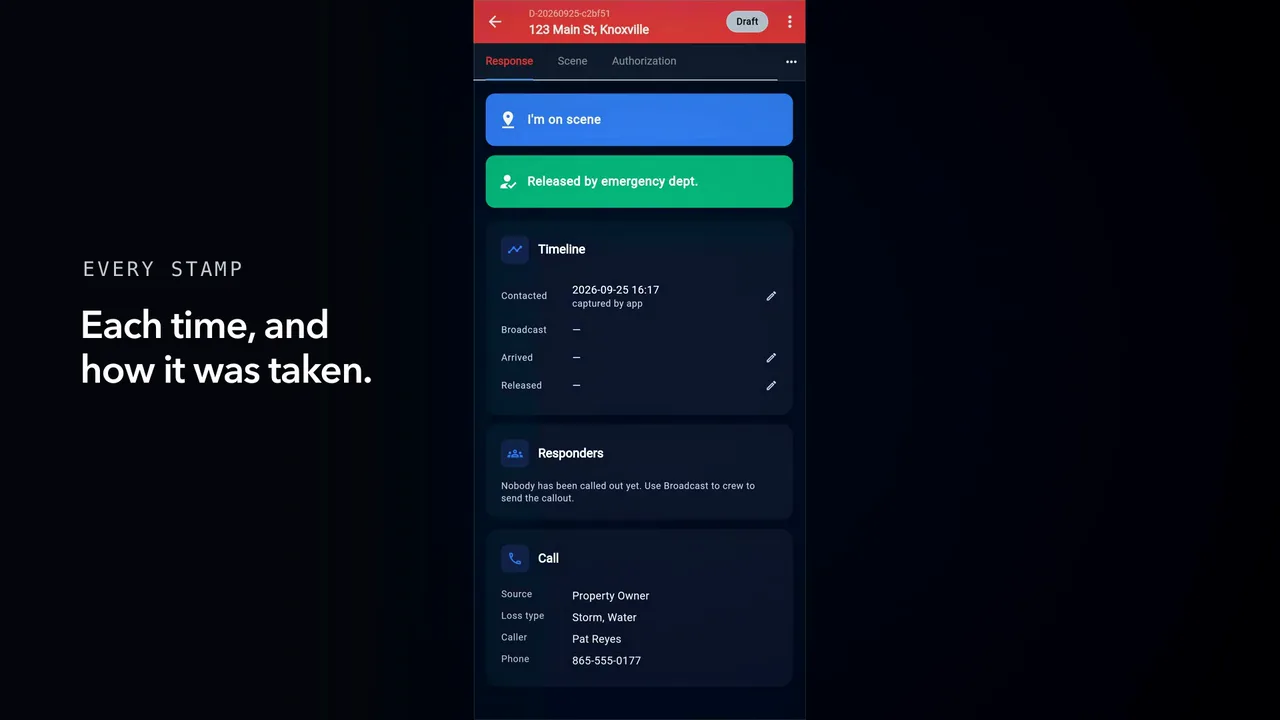
Two stamps, on scene and released, and a timeline that shows each time and how it was captured.
Scene is the site ticket: the materials used, and what was done. It waits for the crew.
Authorization: not signed yet. You capture the signature on scene.
-
Chapter 2 of 3 · Office
Call the crew
Call the crew from the callout, see who it can reach, and watch the answer come back with an ETA.
1:29 · English audio · captions on screen
Read the chapter 2 transcript
Captions are burned into the video and are always on.
The crew is called from the callout itself. Three dots, then Broadcast to crew.
Before anything goes out, you see who it can reach: by text, by email, by push. Each name shows its channels.
Untick anyone who isn't rolling, and the reach line follows the crew you picked.
When the crew is right, press Send callout.
On a crew member's phone, the callout lands in the bell. Open it, and the row reads Emergency callout, with the address.
The callout also carries a link to a page, no sign-in needed: the where, the what, and who called it in.
Pick how long until you're there, then press I'm going. The page confirms: you're on it.
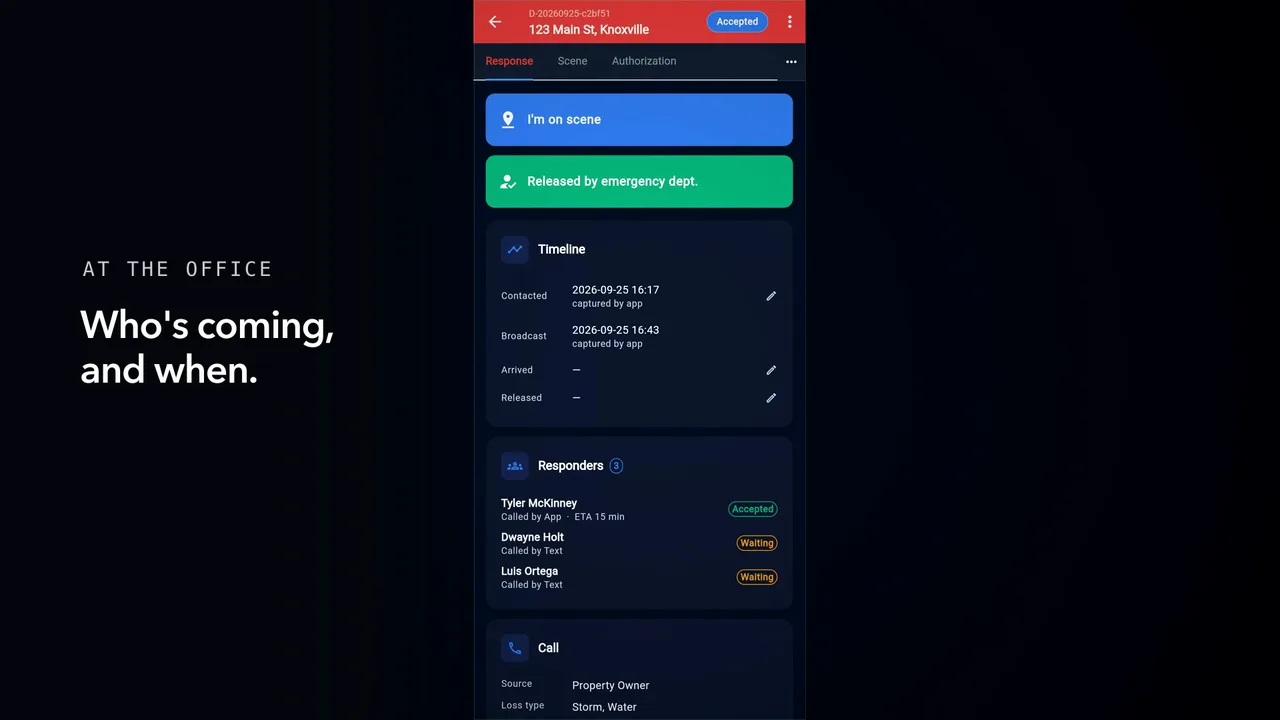
Back at the office, the callout reads Accepted, and the timeline stamps the broadcast. Responders shows who's coming, with their ETA, and who hasn't answered yet.
And the board says so at a glance: the callout, how many accepted, and its chip. Next, the signature on scene.
-
Chapter 3 of 3 · Office
Authorization on scene
Publish your authorization language, capture the signature on scene in the right order, file the PDF, and carry the callout into the pipeline.
1:42 · English audio · captions on screen
Read the chapter 3 transcript
Captions are burned into the video and are always on.
Dispatch settings holds the authorization language: your words, with tokens for the callout, published, and legal review confirmed — so crews can capture signatures.
As you arrive, press I'm on scene: the time is stamped on the callout.
From the menu, Capture authorization. Tick who is signing — here, the property owner — and continue.
Type the printed name — that's the record. Pick how they relate to the property, add a phone; till then, the pad stays locked.
Your language appears, filled in for this callout. Consent to sign electronically is its own tick.
Now hand the phone over. They sign on the pad; when the stroke is in, accept the signature.
Review who signed, confirm the basis, and complete it. The authorization is captured.
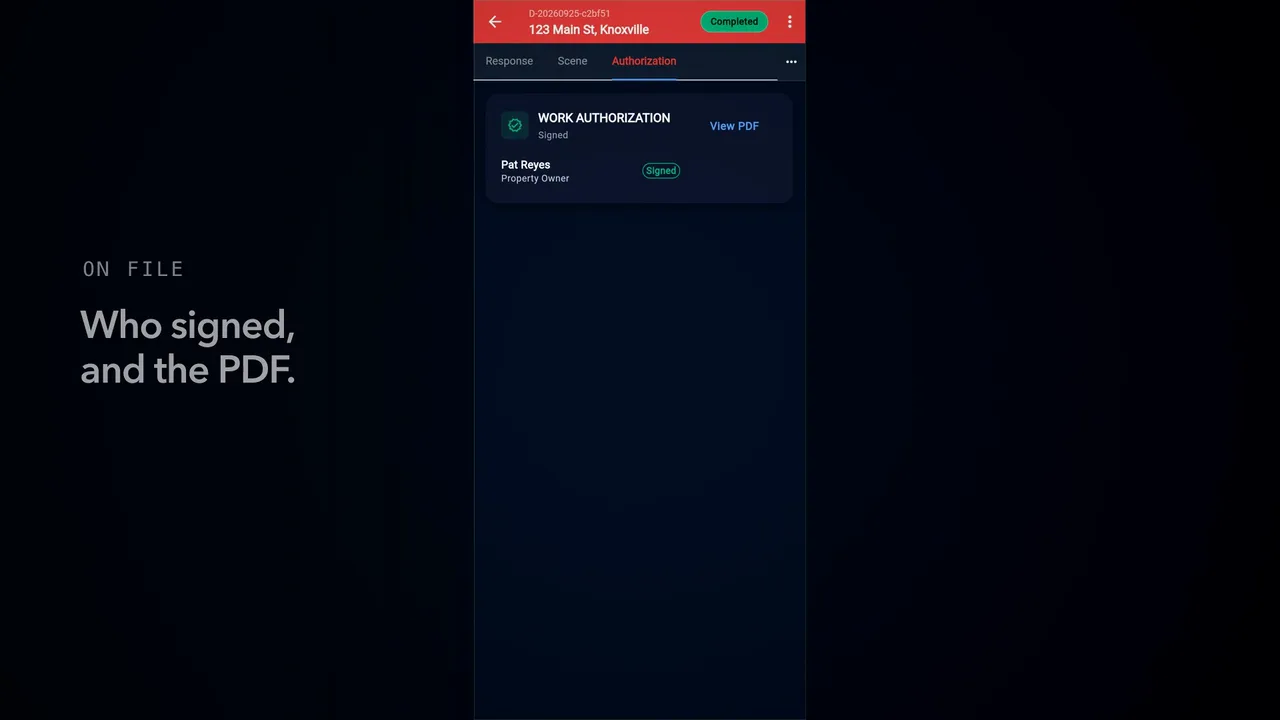
The callout is complete, and the authorization is filed on it: who signed, in what role, and the PDF.
From the menu, Create lead from callout adds it to the sales pipeline. A Lead chip sits on the record.
On a computer, open the pipeline. The callout is now a card in the Lead column — the address, the town — with the other leads.
Captions are burned into every chapter and are always on. Every chapter has a written transcript.