Win the work
From the curb to a won job: capture a lead, work the pipeline, keep the follow-ups, and see which quotes are slipping.
-
Chapter 1 of 4 · Office
Capture a lead
Standing at a building: the address from your position, the name from Places, the interest, the visit, photos, a note and a contact — saved, with a checklist of what's left.
1:29 · English audio · captions on screen
Read the chapter 1 transcript
Captions are burned into the video and are always on.
On the dashboard, press Capture Lead. It reads your position, drops the pin, finds the address.
When Google Places knows the place, its name fills in. Wrong one? Press Clear.
Rate the interest: hot, warm or cold. Then the visit outcome — here, you reached the decision maker.
Under Photos and files, use the camera, or pick from the library — here, from the walk.
Site notes holds what you saw and heard. Contact is who you spoke with — name and number.
Press Save lead. The lead's page opens, with a follow-up offered on the spot.
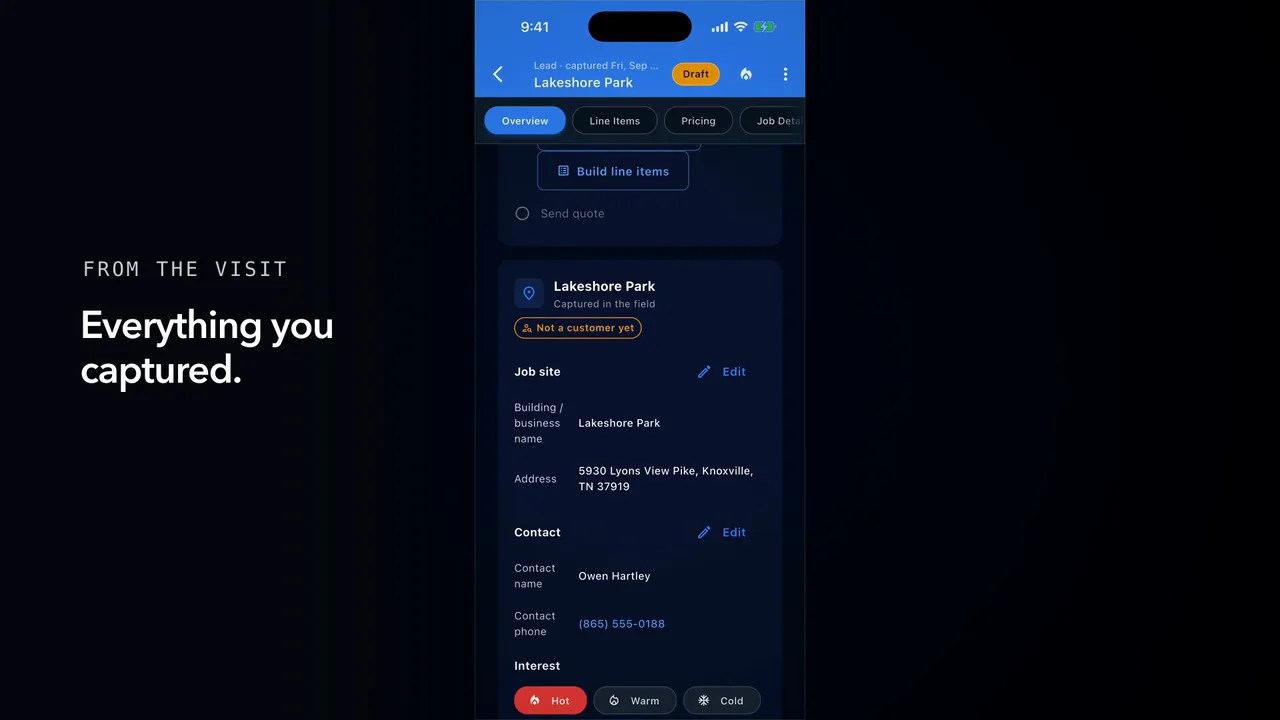
At the top, Complete this lead: the address and notes are ticked; the open rows are what's left.
Below it, the visit: captured in the field, not a customer yet, the job site and the contact.
Then the rating, the notes and the photo count. Add as customer, add a scope, and Send quote unlocks.
-
Chapter 2 of 4 · Office
The pipeline
The pipeline as a list on your phone, a board and a map on a computer, and what a stage move changes.
1:33 · English audio · captions on screen
Read the chapter 2 transcript
Captions are burned into the video and are always on.
Under More, open Sales Pipeline. On a phone it's a list, with the value and the counts up top.
The chips narrow it. Leads keeps the leads alone. Add Hot, and you see who's ready to talk.
Group by Stage is the default. Pick City, and the list splits by town, each with its total.
On a computer it's a board. Four stages, left to right, each with its total, and the leads on the left.
Drag a quote to move it. Negotiation is where a quote goes once talks begin.
To close it, the three dots offer Move to stage. Pick Won, and it spells out what changes, status included, before you confirm.
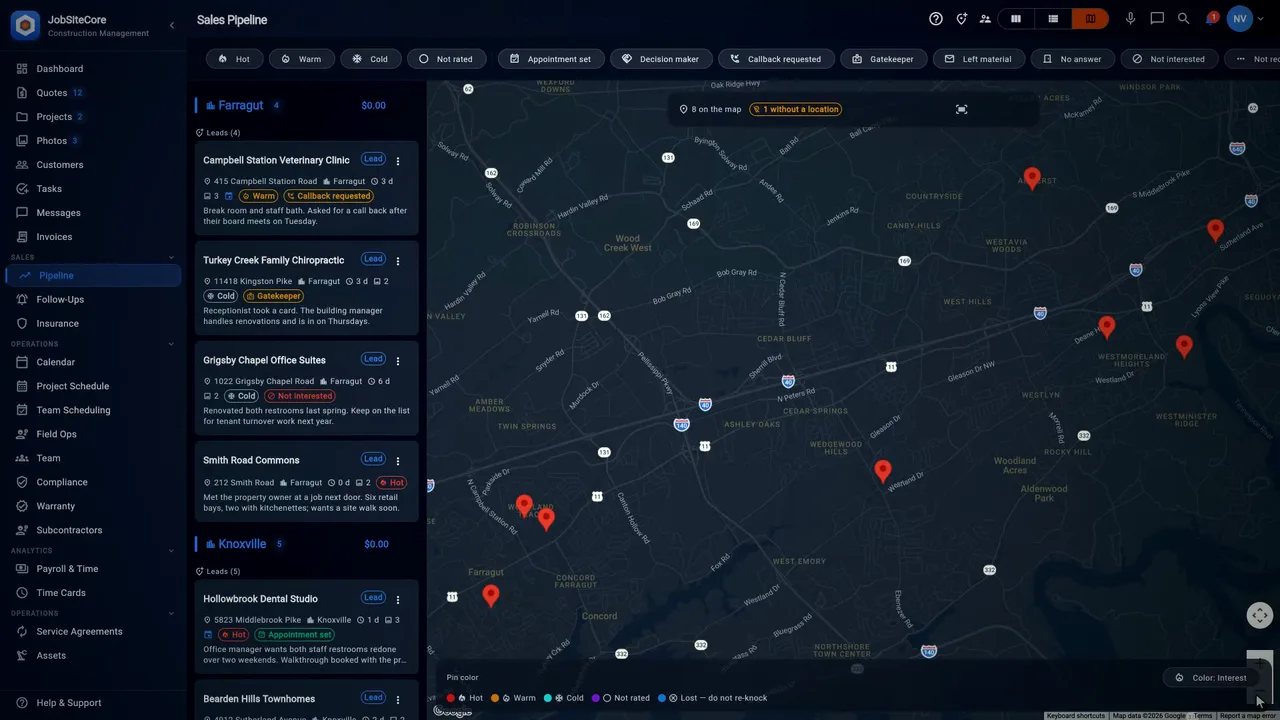
The view switcher has a map. Captured leads show as pins, and the list beside it runs by town.
Click a pin for its card: the building, the street, the visit, and Open lead is right there.
Leads with no pin sit behind their own chip. Open it, find the lead, then press Locate on map. The address is looked up, the location is saved, and the lead joins the map.
-
Chapter 3 of 4 · Office
Follow-ups
Schedule a follow-up from the quote or after a call, keep them in one list by when they are due, snooze or complete them, and see them on the calendar, in the bell and on the pipeline card.
1:40 · English audio · captions on screen
Read the chapter 3 transcript
Captions are burned into the video and are always on.
On a quote's Sales tab, press Schedule Follow-Up. Check the title and due date, pick when to be reminded, and press Schedule.
After a call, press Log Call, record the outcome, and switch on Schedule a follow-up. Save, and scheduling opens.
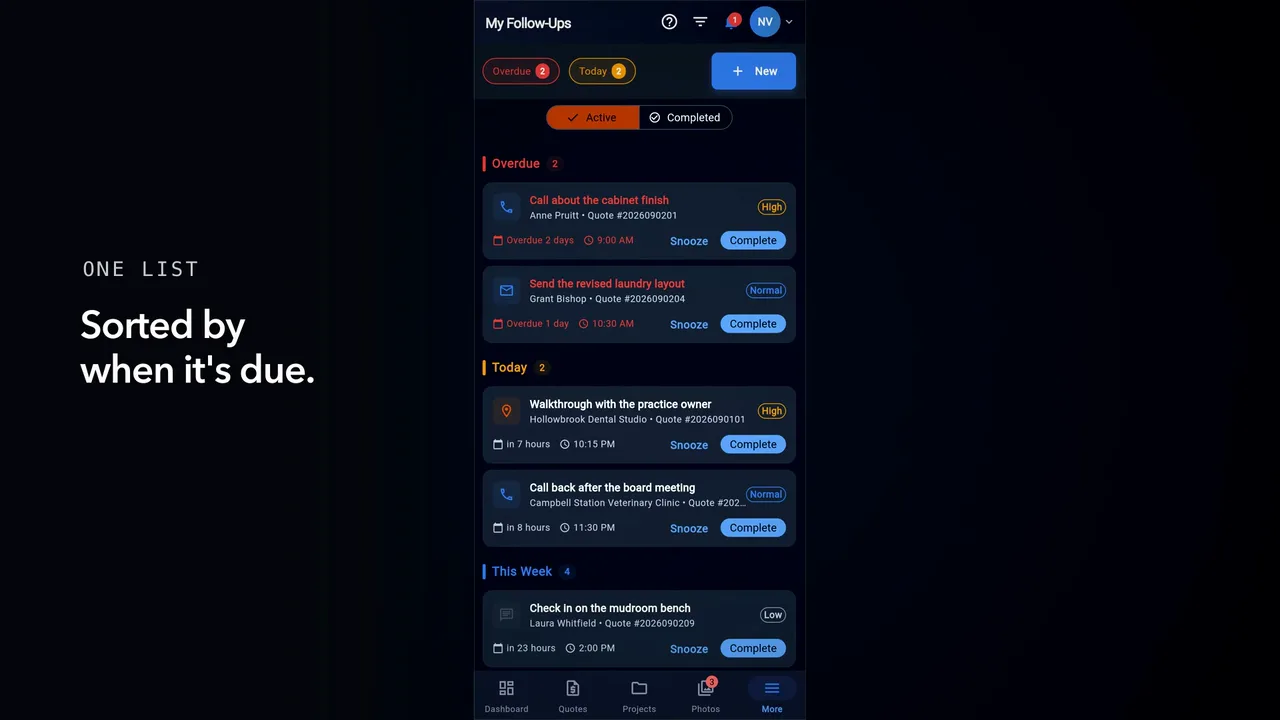
Open My Follow-Ups for your own list. It is grouped by when each is due: overdue, today, this week, and later.
Not today? Press Snooze and pick Tomorrow. It leaves the overdue group until then.
When it's done, press Complete and add a note on how it went. It moves to the Completed list.
Press New for a follow-up that has no quote, or attach one for context.
On the Calendar, keep the Follow-ups chip on and your team's follow-ups sit beside the week's jobs and meetings.
At the reminder time you picked, it lands in the bell. Press the notification and it opens your follow-ups list.
Back on the pipeline, a quote with a follow-up carries a calendar icon on its card, and red means overdue. The card, the list, and the bell each keep the next step in view.
-
Chapter 4 of 4 · Office
Estimator oversight
Which quotes are falling behind and whose they are, a reminder that reaches the estimator's phone, and a follow-up booked in their name.
1:20 · English audio · captions on screen
Read the chapter 4 transcript
Captions are burned into the video and are always on.
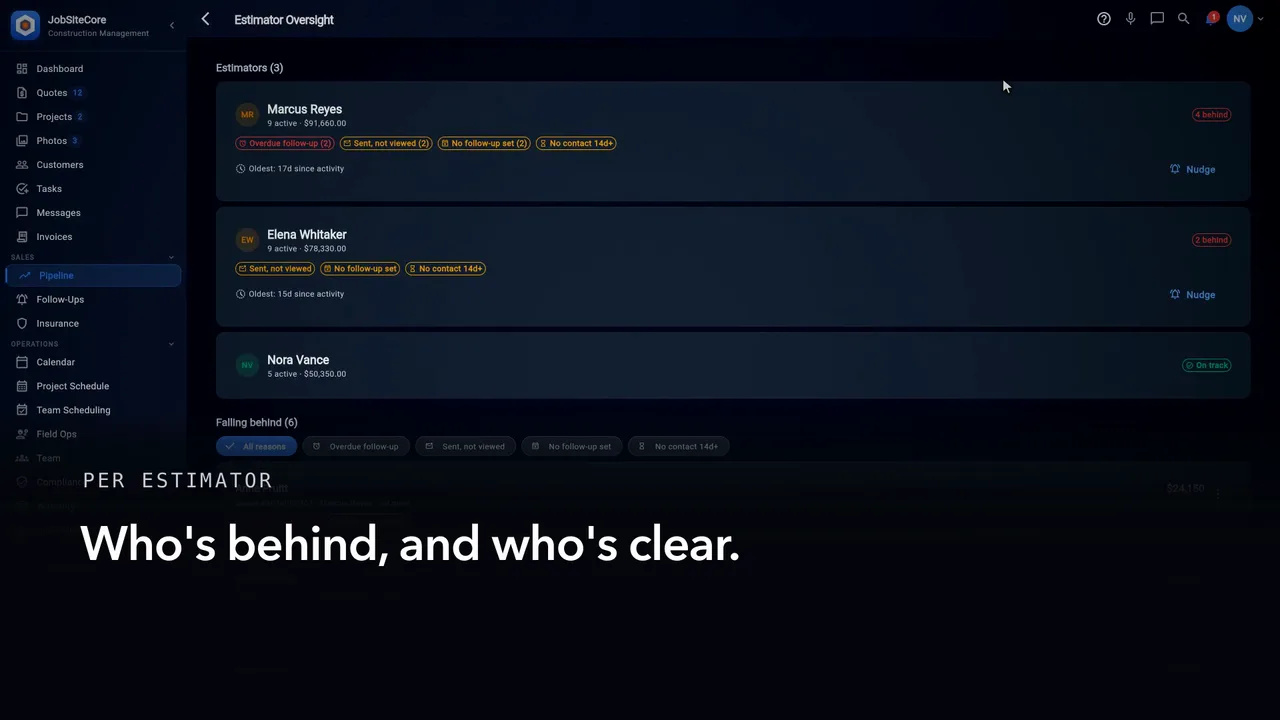
From the pipeline, the Estimator Oversight button shows which quotes are falling behind, and whose they are.
Each estimator gets a card: what's active, how many are behind, and how long the oldest sat quiet. A clean card reads On track.
Below, the quotes that are slipping, and why. Pick one reason — no contact in two weeks — and the list narrows.
To prod someone along, press Nudge, add a note if you like, and Send reminder. Once a day, per estimator.
On the estimator's phone, the bell picks it up: a short note that some quotes need a follow-up. A tap opens the most pressing one.
Or book it yourself: the three dots on a quote, Schedule follow-up. It's due tomorrow, with a reminder; press Schedule.
It lands on the estimator's list, with the quote attached.
The back arrow returns you to the pipeline.
Captions are burned into every chapter and are always on. Every chapter has a written transcript.