The Time Clock, start to finish
Clock in, work the day, clock out — and what to do the day you forget.
-
Chapter 1 of 6 · Field
Clocking in
Pick the job, pick your work class, press Clock In — and every other way a punch starts.
1:40 · English audio · captions on screen
Read the article: Track time on a job
Read the chapter 1 transcript
Captions are burned into the video and are always on.
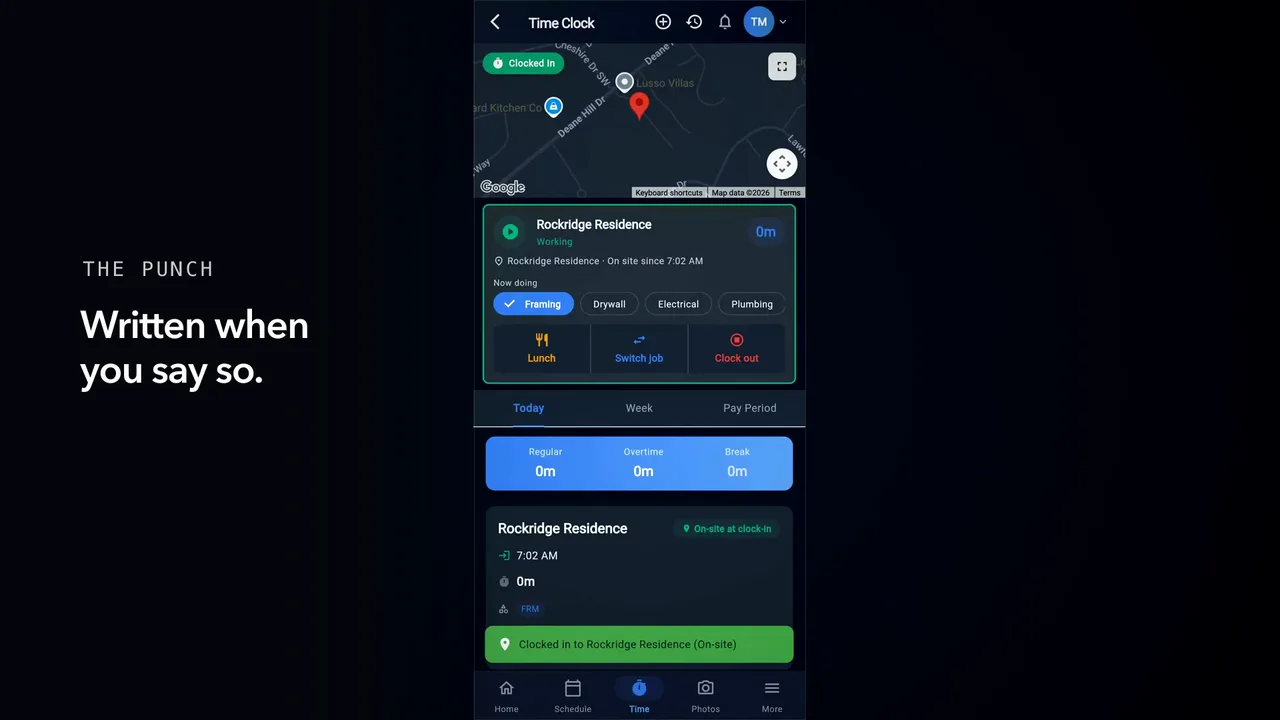
On the Time Clock screen, tap Clock In.
It asks which job before anything is recorded.
Your scheduled jobs sit at the top, with their distance.
Tap your job, choose your work class, then tap Start Working.
The timer begins, and your location is saved with the entry.
Your dashboard carries the same Clock In button on today's assignment card.
Tap a job you are not at. It offers the site you're on.
Nothing is recorded until you answer.
If you start somewhere else, the app asks why.
Leaving home also offers to start your clock on arrival.
Tap the reason that fits, then Clock In.
Forget to punch in, and clock in an hour late? The app asks when you really began.
Nothing is filled in. What you pick is the record.
A foreman punches in the crew: pick the job, pick the class, tap the names.
That punch is stamped with the foreman's name.
Your own card shows who punched you in.
-
Chapter 2 of 6 · Field
Through the day
Lunch, a job switch, a drive to the next site — what the day records while you work.
1:26 · English audio · captions on screen
Read the article: Track time on a job
Read the chapter 2 transcript
Captions are burned into the video and are always on.
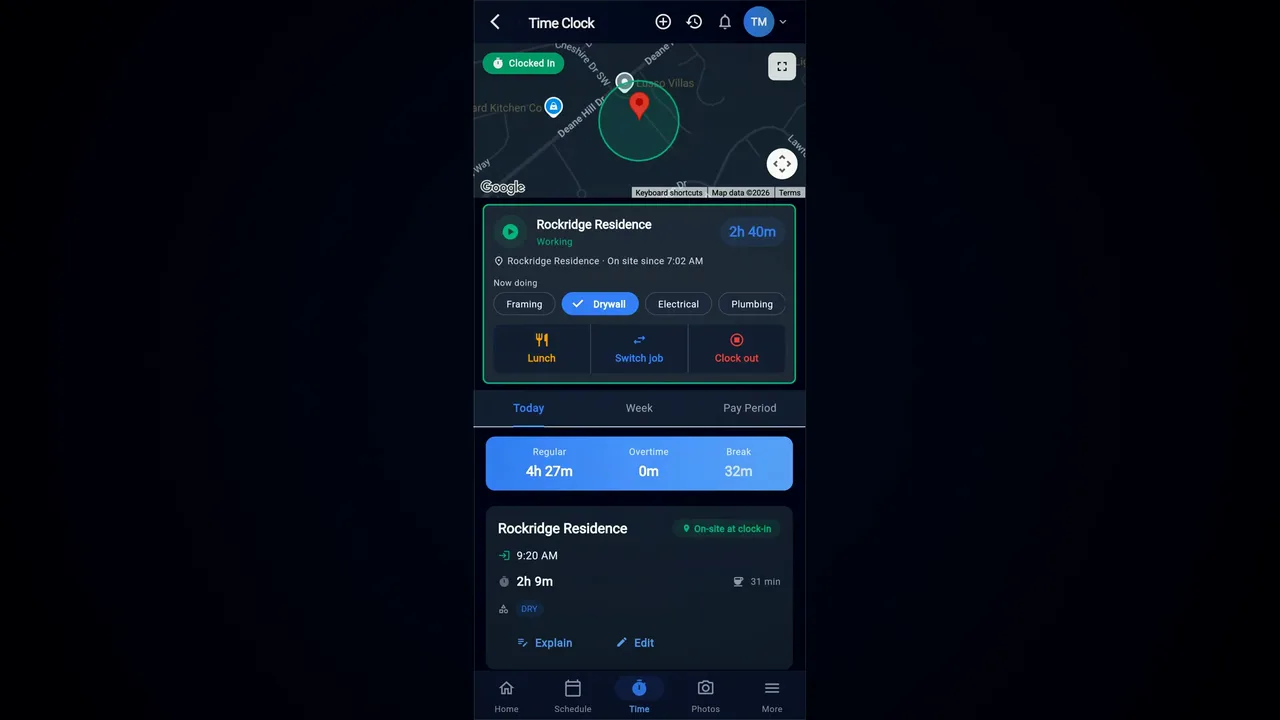
This card shows your shift while it runs.
Under it, one line names the job and when this stretch of work began.
Tap the new class when the work changes. Each class keeps its hours.
When you stop to eat, tap Lunch. The top line counts it down.
To go back early, press the button under the bar and say why.
On the California setting, the app holds lunch for thirty minutes.
When you're back, tap End lunch.
To change jobs, tap Switch job.
Say when you left. Tap Now, or an earlier time.
Pick the next job. Leave Driving there now selected, then tap Switch.
The drive runs as its own entry, and it's paid.
Tap I've arrived. Check the time it shows. Change it if that's wrong.
Tap Start work. Your hours now go to the new job.
-
Chapter 3 of 6 · Field
Clocking out — and the day you forget
Leave the site, answer what the app asks, and put right the day you forgot to punch out.
1:54 · English audio · captions on screen
Read the article: Track time on a job
Read the chapter 3 transcript
Captions are burned into the video and are always on.
When you finish an ordinary day, tap Clock out on the timer bar.
The lunch you punched is already on the sheet, so nothing needs typing.
Answer the rest-break question, then tick both boxes.
No box is ticked for you. An empty box records nothing.
Tap Clock Out. The day closes with your answers on it.
Open Time History to see every leg of the day.
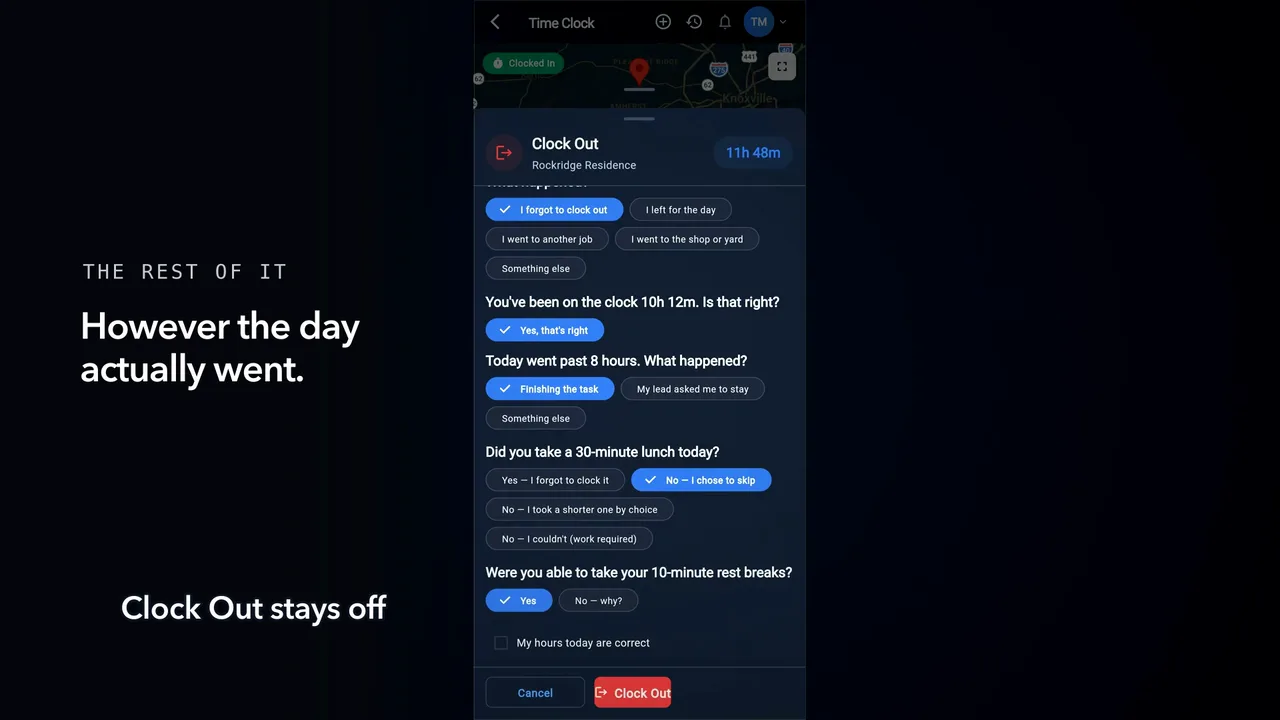
Now the exception: a long day, finished miles from the site.
The sheet asks what time you left.
Press the time your phone recorded, or pick another.
Then choose the reason the shift stayed open.
A day past your company's limit needs your confirmation.
It asks about lunch and rest breaks too.
Clock Out stays off until every question is answered.
Press Clock Out, and the shift closes at the time you gave.
If you forget, the app closes the shift for you.
The next morning the app asks when you left.
Press the time your phone recorded.
Check the hours it works out, then press Send.
The app can close a shift while you are still working.
Tap I'm still working, and your clock carries on.
-
Chapter 4 of 6 · Office
The office: who is on the clock
The Time Cards board — who is on the clock right now, and what is waiting for a second look.
1:33 · English audio · captions on screen
Read the article: Track time on a job
Read the chapter 4 transcript
Captions are burned into the video and are always on.
The office has two things to check.
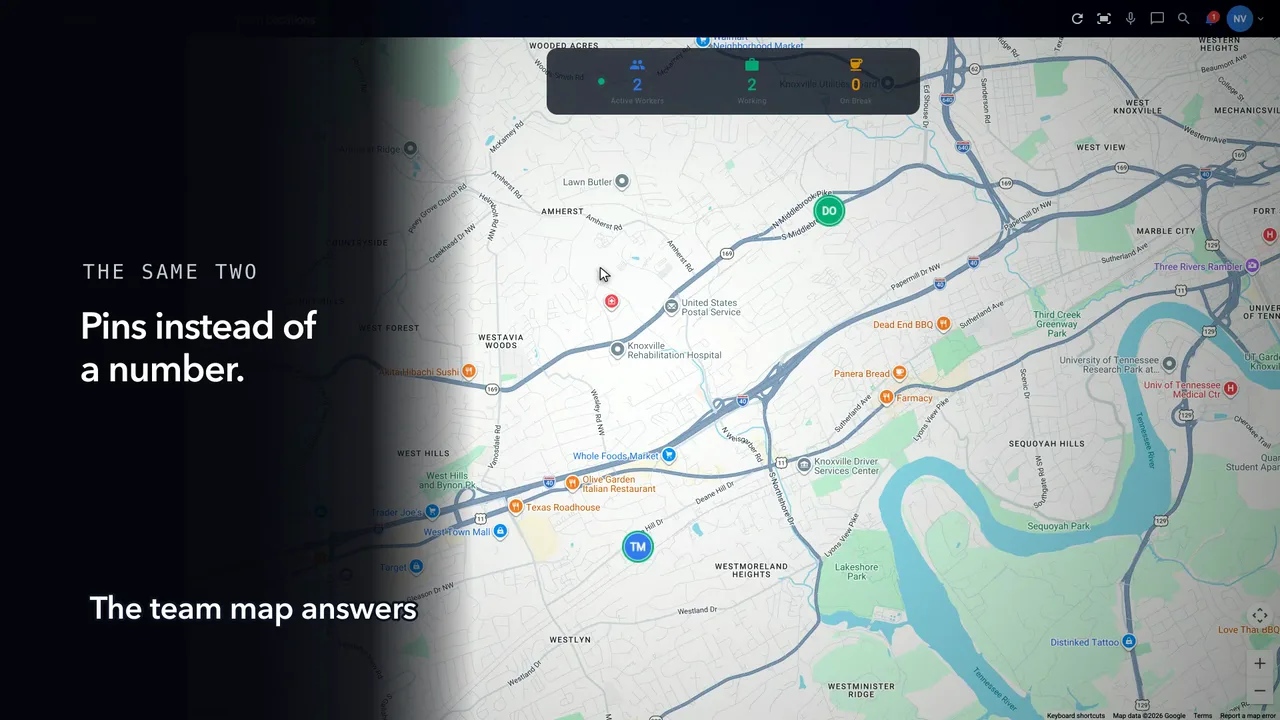
The Field Ops hub shows how many people are clocked in.
The team map answers it again, with breaks counted separately.
The hours are on the Time Cards screen, under Needs attention.
Press the calendar button, top right, and set the dates to the pay period that just closed.
Each chip names a type of problem.
Press Job switch, and the list narrows to those.
Each name carries that worker's days in the period.
Press a day, and the list shows just that date — for everyone.
The title says what is wrong.
The line under it says how the app knows.
Nothing is settled yet — a person decides.
Press the row. The pane lists every way to settle it.
Fix it here, or send the question to the phone.
Chapter five settles a row like this one, start to finish.
Read the chapter 4 transcript (phone version)
Captions are burned into the video and are always on.
The office has two things to check.
The Field Ops hub shows how many people are clocked in.
The team map answers it again, with breaks counted separately.
The hours are on the Time Cards screen, under Needs attention.
Press the calendar button, top right, and set the dates to the pay period that just closed.
Each chip names a type of problem.
Press Job switch, and the list narrows to those.
Each name carries that worker's days in the period.
Press a day, and the list shows just that date — for everyone.
The title says what is wrong.
The line under it says how the app knows.
Nothing is settled yet — a person decides.
Press the row. The next screen lists every way to settle it.
Fix it here, or send the question to the phone.
Chapter five settles a row like this one, start to finish.
-
Chapter 5 of 6 · Office
Reconciling hours
Take the exceptions one at a time: read the evidence, ask the worker, settle the hours.
1:55 · English audio · captions on screen
Read the chapter 5 transcript
Captions are burned into the video and are always on.
Open Time Cards and go to Needs attention.
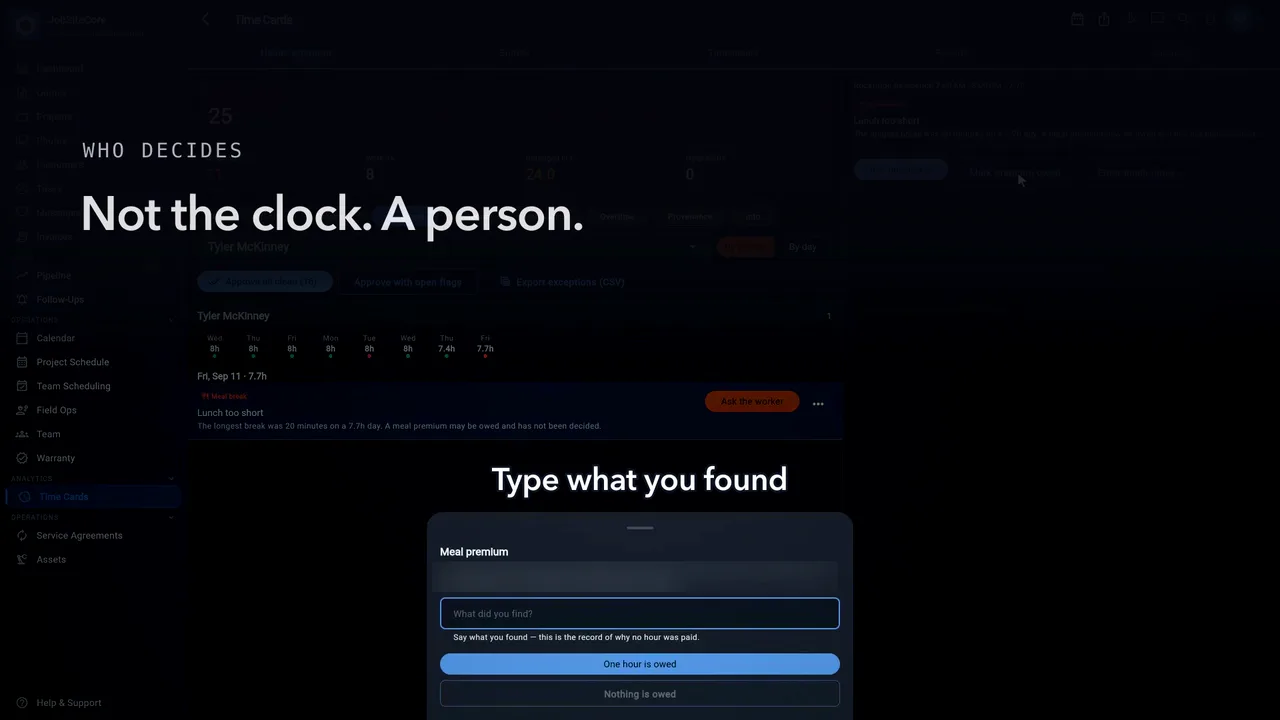
Each row is one problem on one shift, with the evidence under it.
The evidence carries a time, so press Set clock-out. The row leaves the list.
Nobody punched a lunch that day, so no time is proposed. The app will not invent one.
Type your question and press Send. It goes to the worker's phone.
Asking does not clear the row. It stays, marked Asked, until you settle it.
On the phone, the question arrives exactly as you typed it. The worker answers and taps Send.
Their reply lands on the row. Click it to open the detail pane.
Press Enter lunch times, and put in the start and the end the worker gave you.
Entering the times re-checks the day, and the row comes back with a different flag.
Press Mark premium owed. Type what you found before you answer — the reason goes on the record.
Neither answer is picked for you. Your decision and reason stay on the day.
Press Approve all clean, and the settled days are approved before the pay run. The rest stay in the list.
Read the chapter 5 transcript (phone version)
Captions are burned into the video and are always on.
Open Time Cards and go to Needs attention.
Each row is one problem on one shift, with the evidence under it.
The evidence carries a time, so press Set clock-out. The row leaves the list.
Nobody punched a lunch that day, so no time is proposed. The app will not invent one.
Type your question and press Send. It goes to the worker's phone.
Asking does not clear the row. It stays, marked Asked, until you settle it.
On the phone, the question arrives exactly as you typed it. The worker answers and taps Send.
Their reply lands on the row. Press it to see the whole exception.
Press Enter lunch times, and put in the start and the end the worker gave you.
Entering the times re-checks the day, and the row comes back with a different flag.
Press Mark premium owed. Type what you found before you answer — the reason goes on the record.
Neither answer is picked for you. Your decision and reason stay on the day.
Press Approve all clean, and the settled days are approved before the pay run. The rest stay in the list.
-
Chapter 6 of 6 · Office
Closing the period
Sign-off, the fortnight grid, and the reports the office takes to the books.
1:13 · English audio · captions on screen
Read the chapter 6 transcript
Captions are burned into the video and are always on.
On the Timesheets tab, each worker has a row, and each day has a column.
Click a day cell to see that shift and its flags.
The Sign-off column shows who has agreed to their hours.
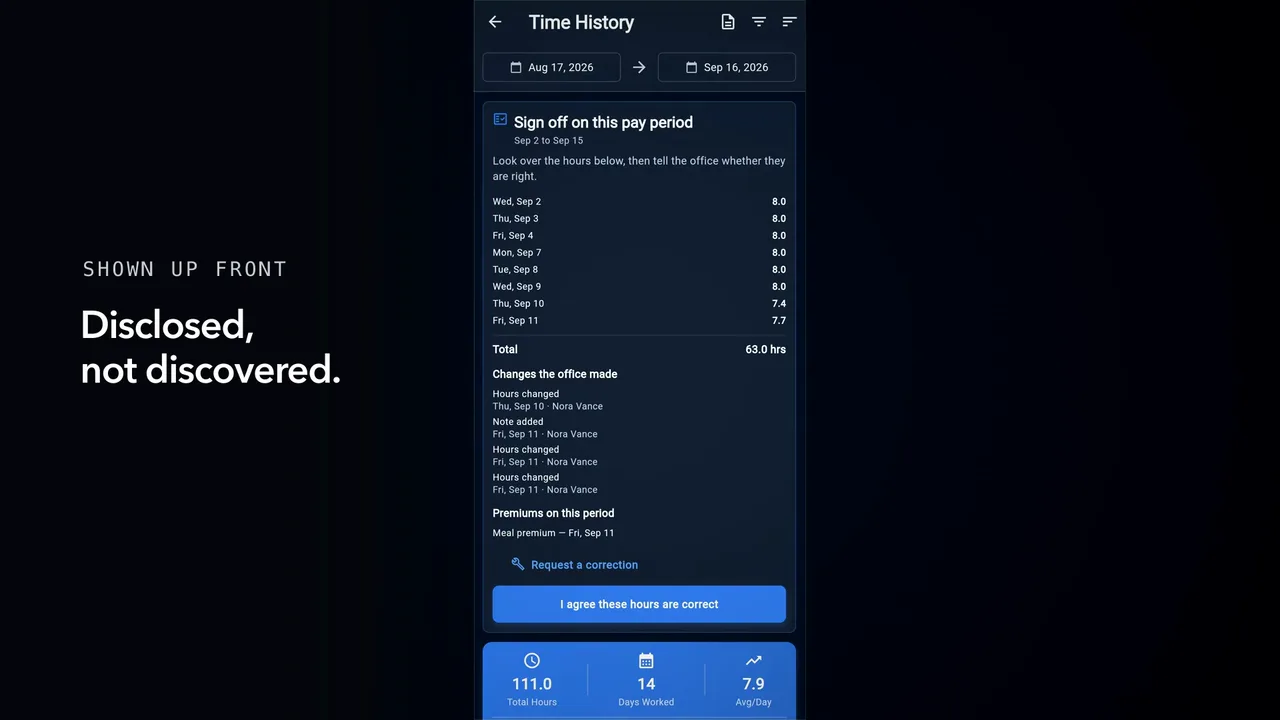
On the phone, the same two weeks arrive.
The card lists what the desk edited, and what the worker is owed.
If a day is wrong, they tap Request a correction.
If the hours are right, they tap I agree, then confirm.
At the desk, that cell now reads Signed.
On the Reports tab, one card totals the hours, another the premiums.
Click Export CSV for your payroll provider. A confirmation shows the row count.
Read the chapter 6 transcript (phone version)
Captions are burned into the video and are always on.
On the Timesheets tab, each worker has a strip, with one box for each day.
Press a day to see that shift and its flags.
The chip beside each name shows who has agreed to their hours.
On the phone, the same two weeks arrive.
The card lists what the desk edited, and what the worker is owed.
If a day is wrong, they tap Request a correction.
If the hours are right, they tap I agree, then confirm.
Back in the office, that chip now reads Signed.
On the Reports tab, one card totals the hours, another the premiums.
Press Export CSV for your payroll provider. A confirmation shows the row count.


Captions are burned into every chapter and are always on. Every chapter has a written transcript.