Running the job
Tasks, customer texts, meetings, subs, RFIs and the carriers behind your claim work, each kept on its job.
-
Chapter 1 of 6 · Office
Tasks on every job
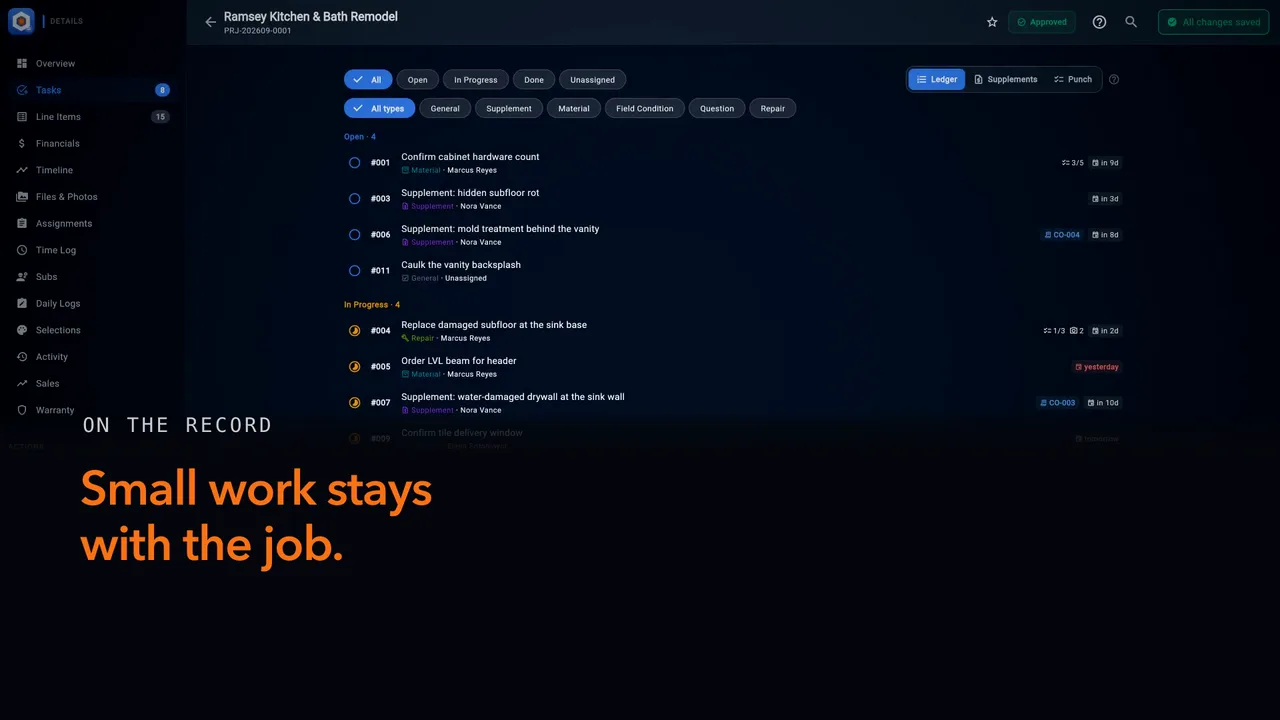
The small jobs from every project in one list you can sort, assign in bulk and view by status, and on each job a numbered ledger that also follows insurance supplements.
1:34 · English audio · captions on screen
Read the article: Track tasks across your jobs
Read the chapter 1 transcript
Captions are burned into the video and are always on.
Open Tasks. The small jobs from across your projects sit here, in one list.
The counts tell you what's open, what's unassigned, and what's due this week.
The tabs sort by owner: Mine is yours, and Unassigned still needs someone.
Select several, and Assign or Mark Done covers all of them at once.
Change the view, and the same tasks stand by status: Open, In Progress, Done.
Open a task, and it carries its job, its people, its due date and its status.
Press In Progress to move it along. Schedule It books it for one person on one day.
On a project, the Tasks tab keeps that job's ledger, every task numbered.
Supplements follows each insurance supplement by its change order, from To Capture to Approved.
On the Overview, Open Work counts what's still open. Add task needs a title, nothing more.
It lands on the ledger with the next number, and that number is never reused.
-
Chapter 2 of 6 · Office
Texts and job messages
Customer texts land in one shared office inbox you answer, assign, note and close, and each job keeps a team thread plus the one the customer answers from her portal.
1:25 · English audio · captions on screen
Read the article: Text customers and message your team
Read the chapter 2 transcript
Captions are burned into the video and are always on.
Open Messages. It's your company's text inbox, one shared list for the office.
The chips narrow it: Unread, Mine, and Unassigned, for texts no one owns yet.
Open a customer's conversation and answer there. A starter reply fills in the text; nothing goes until you send.
Then assign it to a teammate, so the office knows who is handling her.
An internal note sits in the same thread, and the customer never sees it.
When it's handled, close the conversation. If she texts again, it opens back up on its own.
New message starts one. Pick a customer, and you see whether she has opted in to texts.
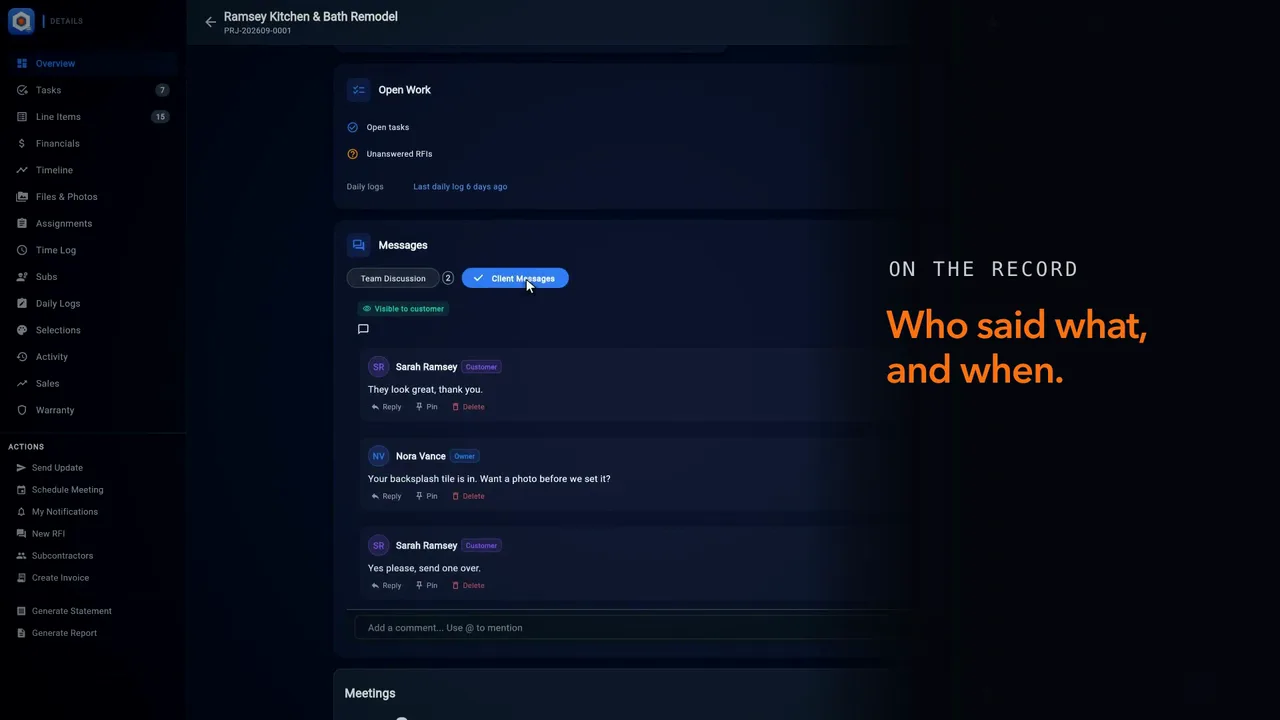
Each job has its own Messages, too. Team Discussion stays inside your team.
Client Messages is the other thread, the one she reads and answers on her portal project page.
On her phone, it shows under Comments, and she writes back from the same page.
Back at the desk, her reply waits under Client Messages, and the whole exchange stays on the job.
-
Chapter 3 of 6 · Office
Meetings on the job
Schedule a customer meeting from the job, choose how she hears about it, move it and she gets an updated invite, and keep the team's notes on the job's record.
1:37 · English audio · captions on screen
Read the article: Schedule a meeting from a job
Read the chapter 3 transcript
Captions are burned into the video and are always on.
On a project's Overview, the Meetings card lists this job's meetings, Upcoming, then Past.
Press Schedule Meeting, here or in the job's actions. Customer Meeting is already picked.
The title names her, and the job and its address fill in on their own.
Choose the day and the time, and how long it runs.
Under Who is this with, she's the customer. Add team members, and they're on it too.
Notifications sets how she hears: an email invite, a confirming text, and a text an hour before.
Texts need her consent, so the text switches wait until you check SMS consent given.
Press Create Event. The meeting lands under Upcoming on the job, and on the calendar.
In her inbox, the invite gives the title, the day, the time and the place.
Back in the office, open the meeting. From its menu, choose Edit event and move the time.
Save Changes. The time moved, so she gets an updated invite; a change to notes sends nothing.
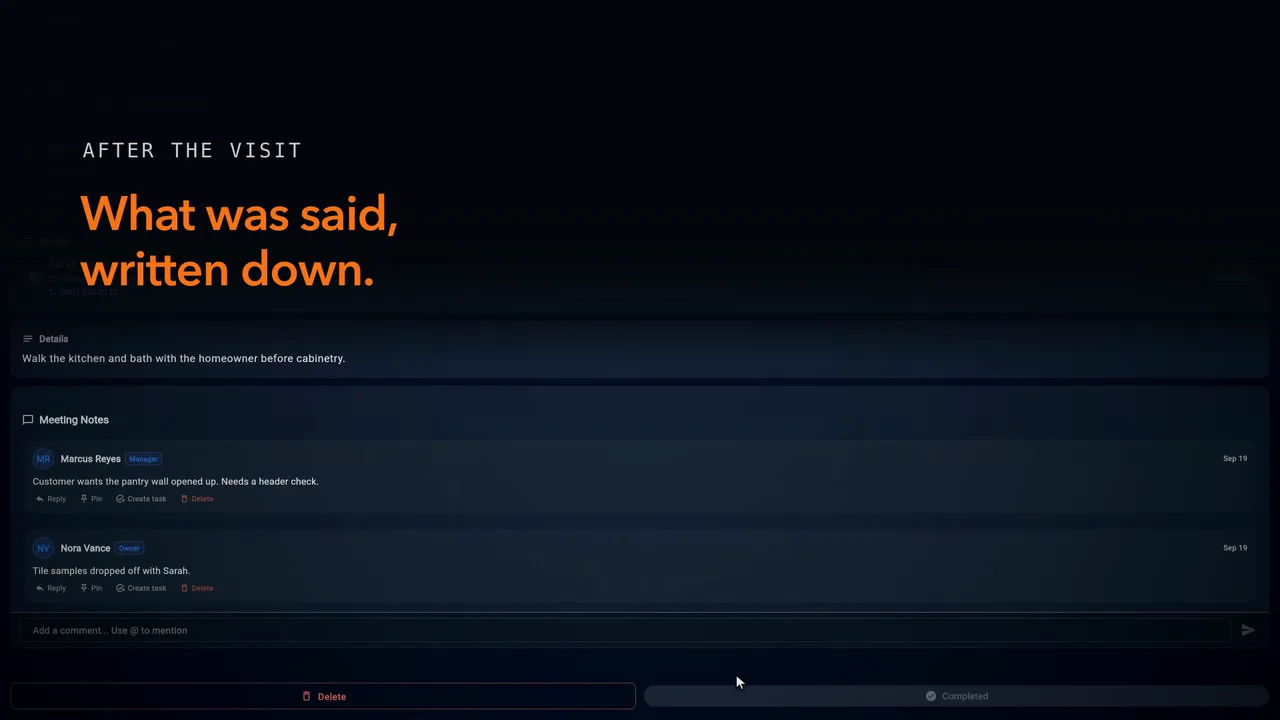
A past meeting keeps its Meeting Notes, your team's alone, on the job's record.
-
Chapter 4 of 6 · Office
Your subcontractors
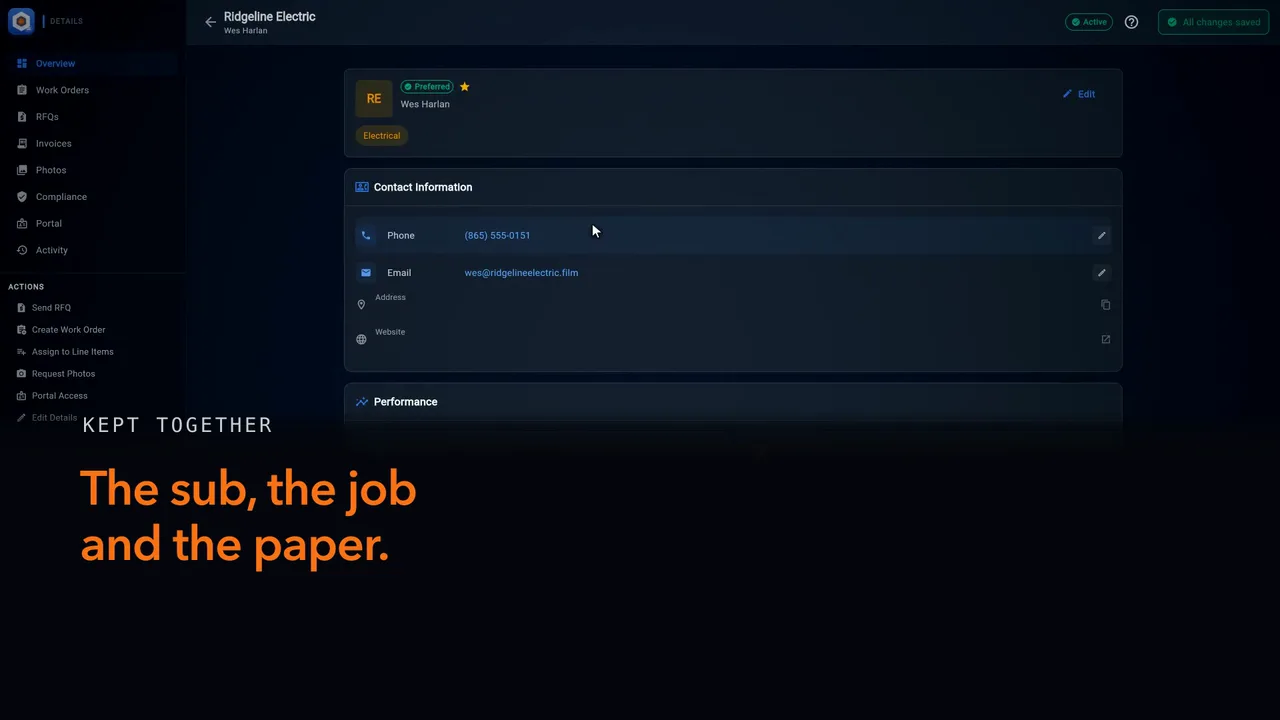
Your directory of subs flags whose insurance or license needs a look, keeps each sub's paperwork on its own record, and shows on every job who is assigned and how to ask them for photos.
1:27 · English audio · captions on screen
Read the article: Set up your subcontractors
Read the chapter 4 transcript
Captions are burned into the video and are always on.
Open Subcontractors. It's every sub you work with, their trades, and whose paperwork needs a look.
Preferred and Favorites narrow the list to the subs you lean on most.
Needs Attention holds anyone whose insurance or license has expired, or expires within thirty days.
Open one and choose Compliance: the certificate, its expiration, each license, and the days remaining.
On a job, open the Subs tab to see which subs are assigned to it.
A sub is on it once they hold a work order, an invoice, or a line item.
From the job's actions, Subcontractors offers three: Request Photos, Invite to Portal, and Assign to Line Item.
Request Photos, then Directory: pick the sub, say what you need, and choose the kinds of photos.
Send Request texts the sub a link to upload their photos to this job.
The work stays on the job, and the paperwork stays on the sub's own record.
-
Chapter 5 of 6 · Office
RFIs on the job
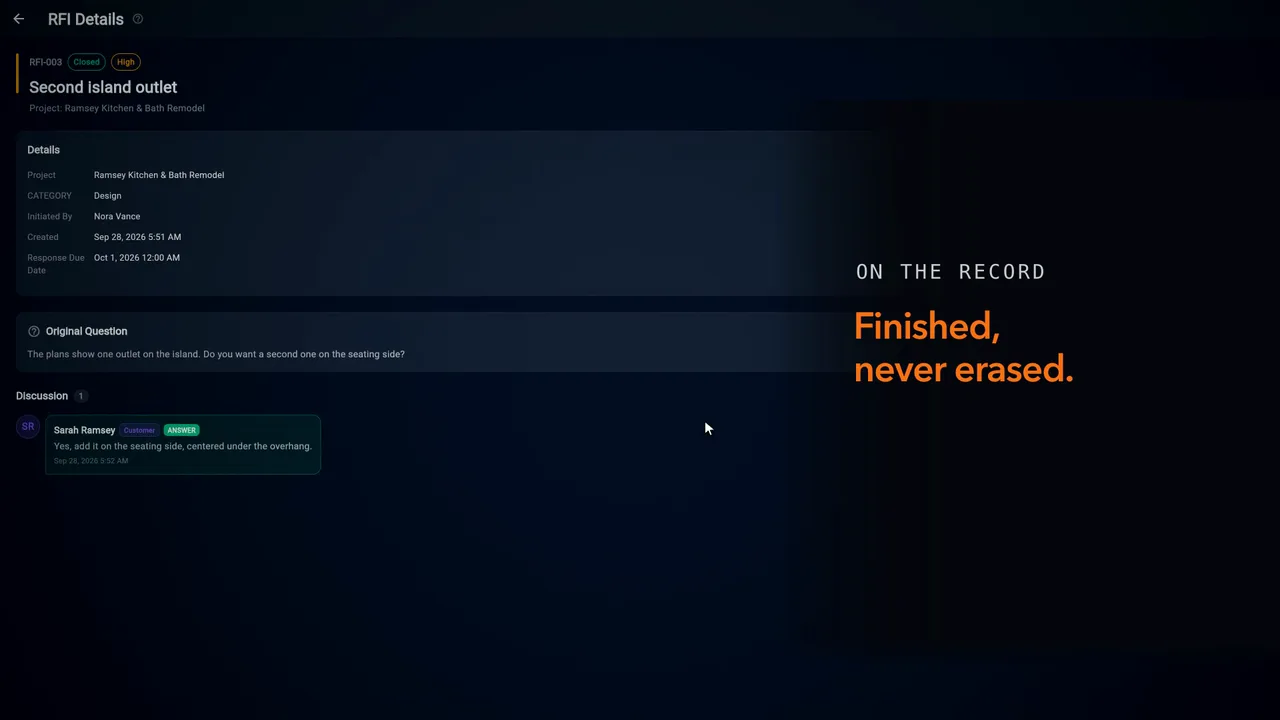
Ask the customer a question in writing from the job, see it counted on Open Work and flagged when overdue, read the answer she gives from her portal, and close it on the record.
1:22 · English audio · captions on screen
Read the article: Ask and answer RFIs
Read the chapter 5 transcript
Captions are burned into the video and are always on.
From the job's actions, choose New RFI: a question you need answered in writing.
Give it a subject, then the question, plain enough to answer without a phone call.
Pick a category and a priority, and give it a response due date.
Press Create RFI. It gets a number, and Open Work on the job counts it as unanswered.
Press that row for this job's RFIs. An open one past its due date lands under Overdue.
On the customer's phone, the question waits further down her project page, under Questions and Clarifications.
She opens it, types her answer and presses Reply. Replying marks it answered.
Back at the desk, a notification says she responded, and it opens the RFI.
Her answer sits under your original question, marked as the answer, and the status reads Answered.
Once it's settled, press Close RFI. The question, the answer and the decision stay with the job.
-
Chapter 6 of 6 · Office
Your carriers and adjusters
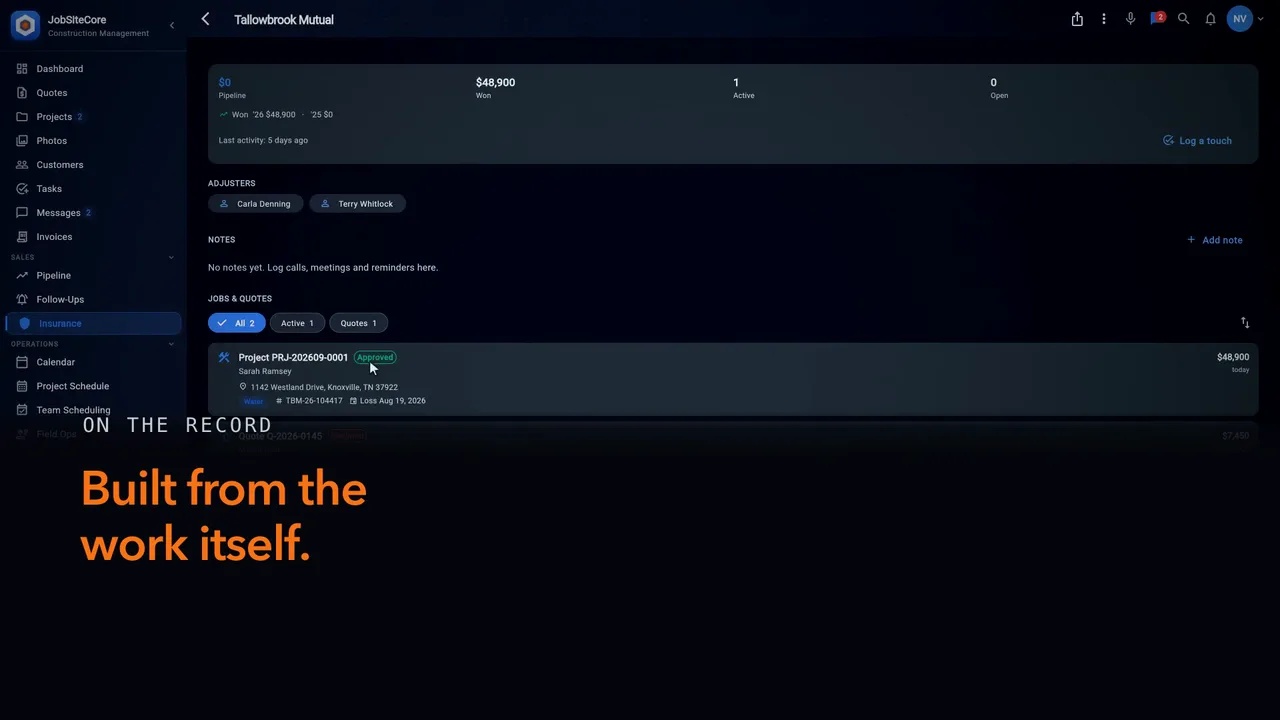
The carriers and adjusters behind your claim work, built from your jobs, with who has gone quiet, a log of every check-in, and the Board to share each relationship.
1:25 · English audio · captions on screen
Read the article: Track carriers and adjusters
Read the chapter 6 transcript
Captions are burned into the video and are always on.
Open Insurance. It gathers the carriers and adjusters behind your claim work.
You never add carriers here. Each comes from the claim on your quotes and jobs, like this one.
The Carriers tab adds it up: Pipeline is open quotes; Won is active and completed work.
Gone quiet means no open work and no recent activity. Top share is your largest carrier's slice.
Press the gone quiet pill, and the list narrows to the carriers worth a call.
Open a carrier. After a check-in call, press Log a touch; it lands in the notes.
Adjusters are the people behind each carrier. At risk flags anyone marked moved or retired.
The gone quiet threshold sets how many days of no open work or activity flag a relationship.
The Board tab lines up each carrier's pipeline and won work, with PDF and CSV to share.
Star the carriers you watch closely, and the Starred filter keeps them together.
And every figure here leads back to a claim on your jobs, where the record stays.
Captions are burned into every chapter and are always on. Every chapter has a written transcript.